Articles · TROUBLESHOOTING GUIDE
Why Is IPTV Buffering in 2026?
9 Real Causes Most Users Miss
A practical, step-by-step guide for viewers in the UK, Ireland, Europe, the USA and Canada
There is nothing more frustrating than settling down to watch a live football match, your favourite series, or an important sporting event, only to find your screen freezing every few minutes.
You restart the television. You close the streaming app. You even check your internet connection, but the buffering keeps coming back.
If this sounds familiar, you are not alone. Streaming interruptions can affect users in the UK, Ireland, Europe, the USA, and Canada, and the reason is not always a slow internet connection.
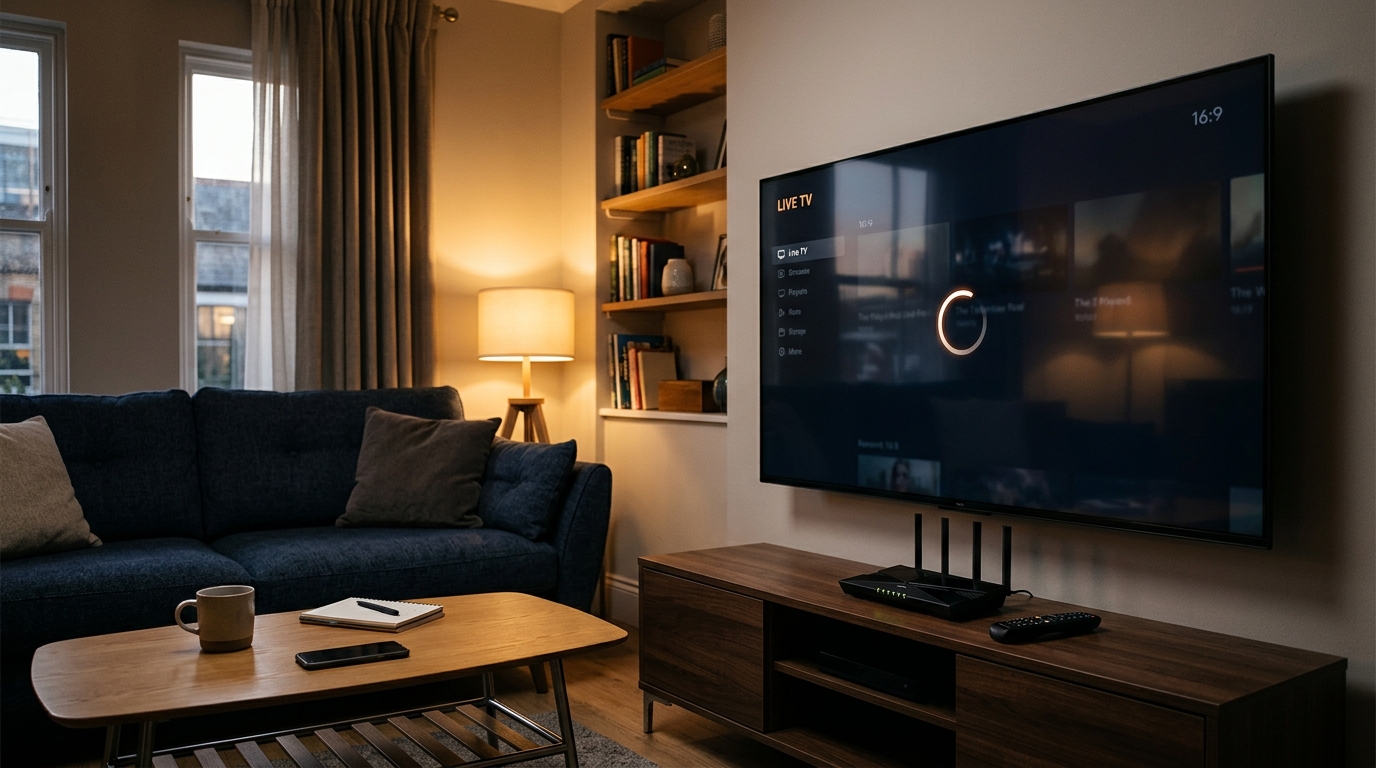
In 2026, home streaming setups are more varied than ever. Smart TVs, Fire TV devices, Android boxes, Wi-Fi routers, streaming applications, VPNs, and internet providers can all play a role in the viewing experience.
The good news? A few simple checks can help you identify the source of the problem before you waste time changing settings that were never responsible.
In this guide, we will explore nine common causes of IPTV buffering, explain how to troubleshoot them, and show you when it may be time to contact your internet provider or streaming service.
1. Your Internet Connection Is Not as Stable as You Think
A fast internet package does not automatically guarantee smooth streaming.
Your connection may deliver high download speeds during a speed test but still experience brief interruptions, packet loss, or fluctuating latency. These problems can affect live video even when ordinary websites load normally.
This is particularly noticeable when several people in the same household are gaming, downloading large files, attending video calls, or watching high-resolution content simultaneously.
How to check it
- Run an internet speed test on the device you use for streaming, if possible.
- Pause large downloads and other bandwidth-heavy activities.
- Compare the experience at different times of the day.
- Restart your router if the connection has become unusually unstable.
For high-resolution streams, a stable connection is generally more important than simply achieving a high headline speed. Your device, Wi-Fi conditions, and the streaming service also influence playback.
2. Weak Wi-Fi Signals Can Cause Frequent Freezing
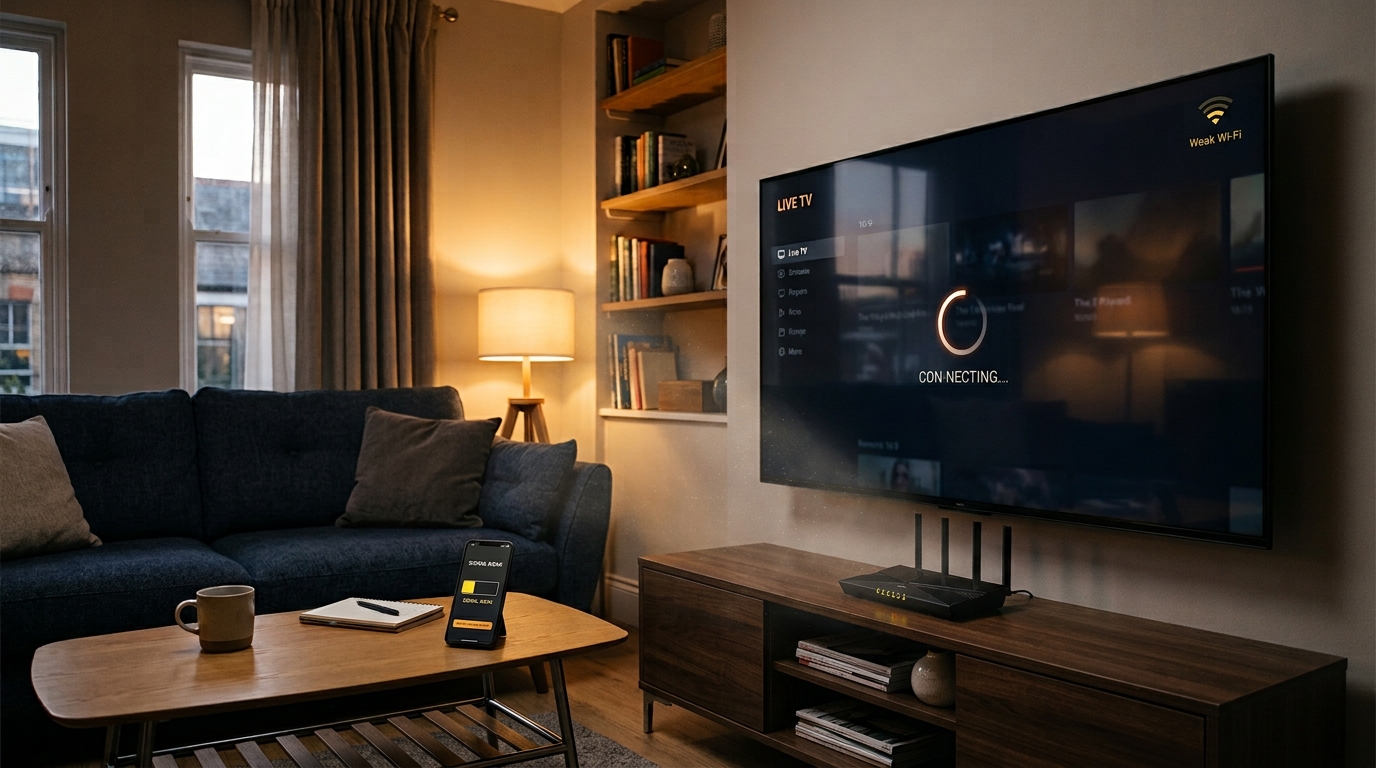
Your broadband connection might be working perfectly, while the signal reaching your television is unreliable.
Smart TVs and streaming sticks are often positioned behind televisions, inside cabinets, or in rooms far from the router. Walls, neighbouring wireless networks, and household electronics can also affect Wi-Fi performance.
This can lead to buffering that appears randomly or becomes worse when you move to another room.
What you can do
- Move the router to an open, central location where practical.
- Avoid hiding it behind furniture or inside a closed cabinet.
- If supported, try the 5 GHz Wi-Fi band when the device is reasonably close to the router.
- Test a wired Ethernet connection if your device supports it.
- Consider a suitable mesh Wi-Fi system if coverage is consistently poor.
A useful test is to compare streaming on a device close to the router with playback in the usual viewing location. If performance improves significantly nearby, your home network may be the main issue.
3. Your Internet Provider May Be Affecting the Connection
Some users experience streaming problems only on particular services or at certain times. In these situations, routing problems, network congestion, filtering, or provider-specific restrictions may be contributing factors.
However, buffering alone does not prove that your internet service provider is blocking a stream.
How to investigate
First, test other streaming services and websites. If everything is slow, the problem may be with your broadband connection or local network.
If other services work normally but one particular stream repeatedly fails, record the time of the problem and any error messages.
You can then contact your internet provider or streaming provider for assistance.
Where lawful and permitted by the relevant service terms, you may also compare the connection with and without a reputable VPN. A VPN can sometimes improve routing, but it can also reduce speed or introduce additional latency. It is not a guaranteed fix.
4. Streaming Servers Can Become Overloaded
Sometimes your home internet is not the problem at all.
The service delivering the video may experience heavy demand, maintenance, routing difficulties, or a temporary technical fault. These issues can be particularly noticeable during major sporting events when large numbers of viewers tune in at the same time.
Typical signs include:
- Several channels or streams failing around the same time.
- Playback working normally earlier but becoming unreliable during peak viewing hours.
- The same problem appearing on more than one device connected to different networks.
What should you do?
Check whether the service provider has reported an outage or maintenance issue. If possible, test another channel or stream and try again after a short interval.
If multiple devices and networks show the same failure, report the problem to the provider rather than repeatedly changing your home network settings.
No router upgrade or application reinstall can fix an outage on a remote server.
5. Your Streaming App May Need Attention
Streaming applications can develop playback problems because of outdated versions, corrupted temporary data, configuration errors, or compatibility issues.
You might notice that the application opens normally but struggles to load channels, freezes after playback starts, or repeatedly returns to its home screen.
Try these steps
- Close the streaming application completely.
- Restart your television or streaming device.
- Check whether an application update is available.
- On supported devices, clear the app cache through the system settings.
- If the issue continues, consult the app developer's instructions before reinstalling the application.
Be careful before clearing application data or reinstalling anything. Some apps may remove saved settings or playlist information, meaning you will need your login details or setup information again.
If only one application is affected while other compatible apps work normally, an app-specific problem becomes more likely.
6. Your Streaming Device May Be Running Out of Resources
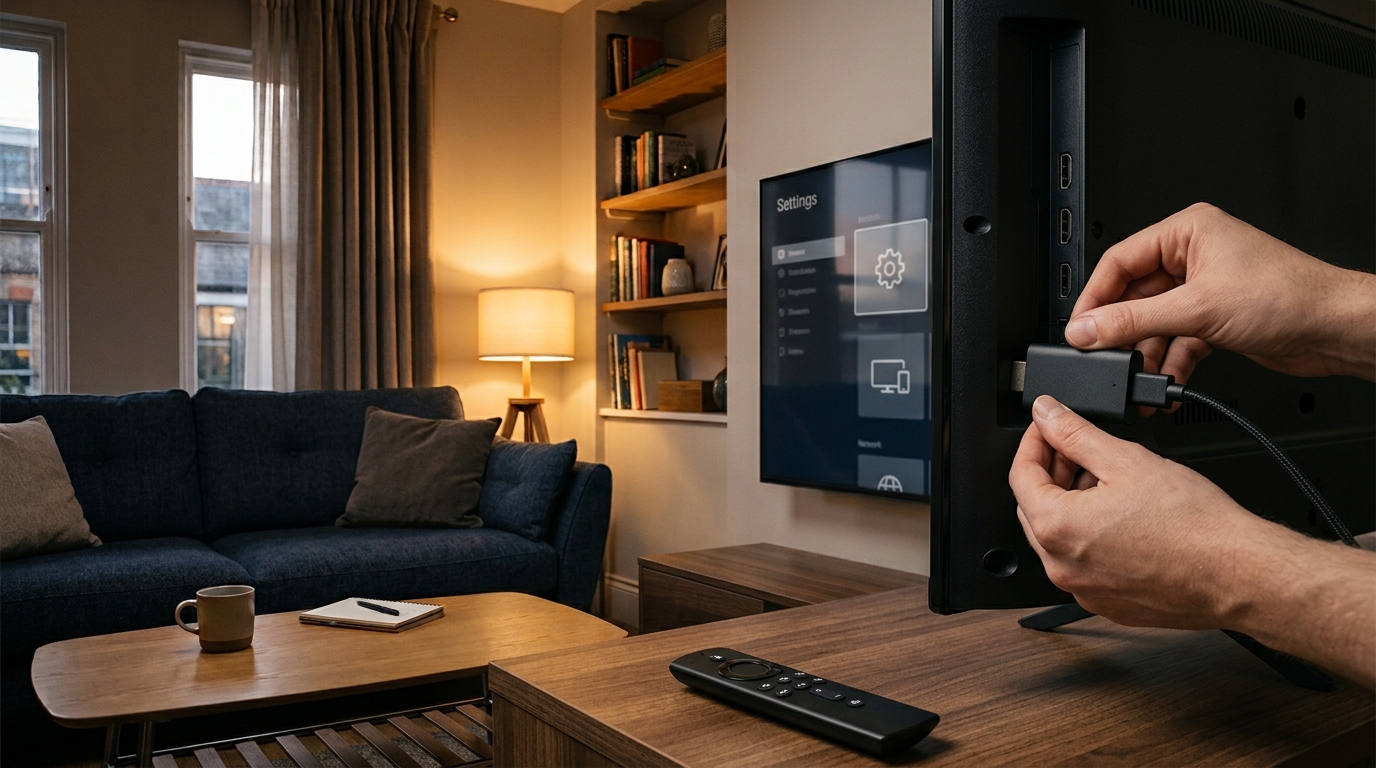
Older streaming devices can struggle when storage is nearly full, too many applications are running, or the device is overheating.
This may cause slow menus, delayed responses, app crashes, and playback interruptions that resemble network buffering.
Fire TV devices, Android TV boxes, smart televisions, and other streaming hardware all have different performance limitations.
Ways to improve performance
- Restart the device rather than leaving it running continuously for long periods.
- Remove applications you no longer use.
- Keep sufficient storage space available.
- Install supported software updates.
- Ensure ventilation openings are not blocked.
- Avoid placing streaming hardware in enclosed, hot spaces.
If the device overheats or consistently struggles across multiple applications, its age or hardware limitations may be contributing to the problem.
7. A VPN Can Sometimes Make Buffering Worse
VPNs are often discussed as a solution to streaming connectivity problems, but their effect depends on the connection and the VPN service.
A VPN adds another step between your device and the destination server. Depending on server distance, congestion, encryption overhead, and routing, this can increase latency or reduce available bandwidth.
On the other hand, a different route may occasionally improve a poorly performing connection.
How to test your setup
If permitted by local law and the relevant service terms, compare playback with and without your VPN while keeping other conditions as similar as possible.
If the stream improves without the VPN, investigate the VPN server, connection protocol, or routing settings.
If it works better with the VPN, there may be a routing or network-policy issue worth discussing with your provider.
Do not assume that every streaming problem requires a VPN. First establish whether the problem is actually related to your network route.
8. High-Resolution Streaming Needs More Than a Compatible TV
A television advertised as 4K-ready does not guarantee uninterrupted 4K streaming.
Higher-resolution video can require more sustained bandwidth, and the actual experience depends on the stream's bitrate, compression, device performance, Wi-Fi stability, and the provider's delivery infrastructure.
Some services also adjust video quality automatically when network conditions deteriorate.
Practical steps
- Check whether the same content plays more reliably at a lower resolution.
- Pause other bandwidth-heavy activities.
- Test Ethernet if available.
- Check whether your device and application support the selected video format.
- Allow the stream a short time to stabilise after playback begins.
If lower-resolution playback is consistently smooth while higher-resolution playback buffers, the connection's available capacity or the device's capabilities may be limiting factors.
9. Your Router or Home Network May Need a Reset
Routers operate for long periods and can occasionally develop temporary connectivity problems. Wireless interference, overloaded equipment, outdated firmware, and incorrect settings can all affect performance.
Restarting the router is a reasonable first step, but repeatedly resetting it without checking the underlying issue is unlikely to provide a permanent solution.
Follow this simple restart procedure
- Close the streaming application.
- Restart your streaming device.
- Restart the router using the manufacturer's recommended procedure.
- Wait until the internet connection is fully restored.
- Reopen the application and test the same stream.
If the problem returns frequently, check the router's firmware and connection status. Contact your broadband provider if you continue to experience disconnections across multiple devices.
Avoid performing a factory reset unless necessary, as this may erase your Wi-Fi name, password, and other configuration settings.
How to Identify the Real Cause of IPTV Buffering
Rather than trying every possible fix, use the symptoms to narrow down the likely cause.
| What you notice | Possible cause to investigate |
|---|---|
| All websites and streaming services are slow | Broadband or local network issue |
| Streaming improves near the router | Weak Wi-Fi or interference |
| Only one app has problems | Application or configuration issue |
| Several channels fail simultaneously | Service-side problem or network routing |
| Playback works at lower resolution | Bandwidth, stability, or device limitation |
| Problems appear mainly during busy periods | Network congestion or increased service demand |
| Device menus are slow and apps crash | Storage, overheating, or hardware limitations |
These clues are not definitive diagnoses, but they can help you choose the next troubleshooting step more efficiently.
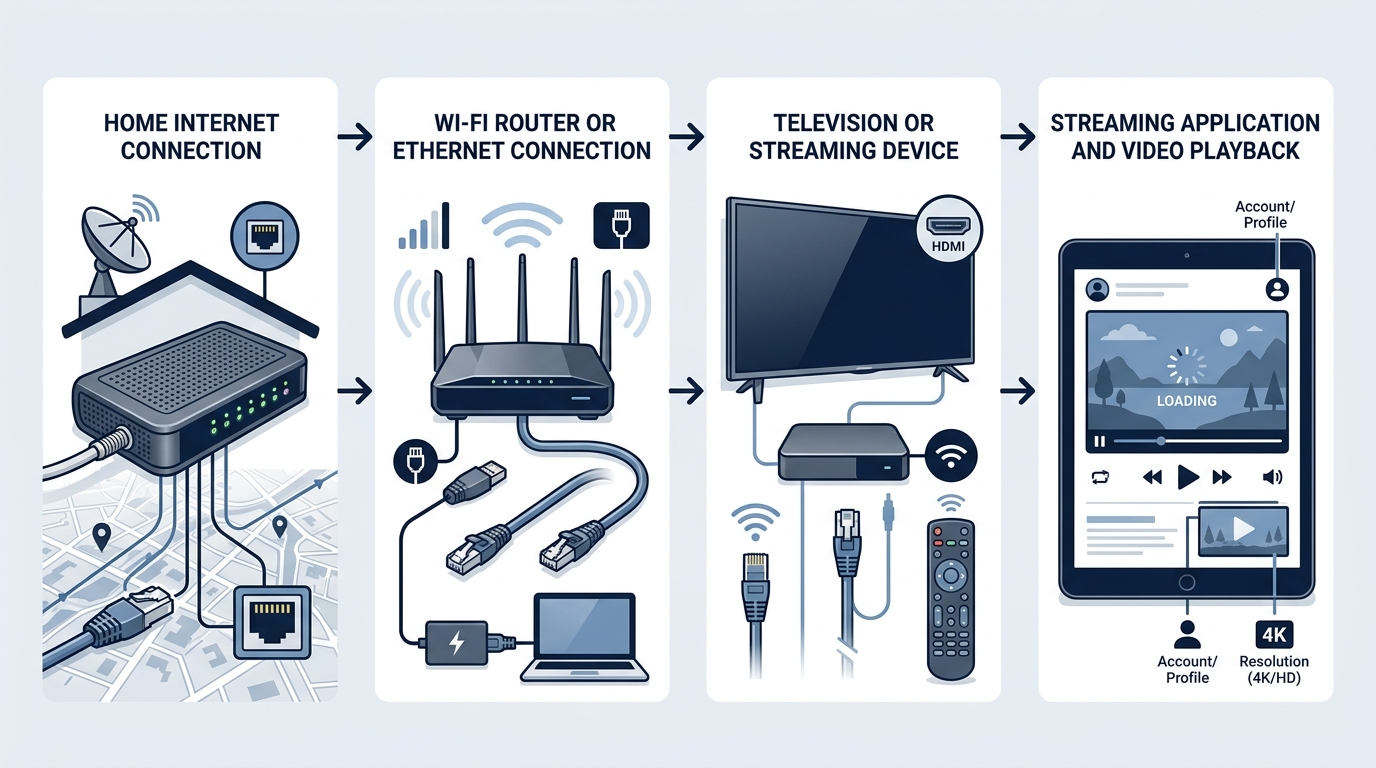
Every stream passes through the same chain of steps, and a fault at any one of them can look like buffering.
When Should You Contact Your Streaming Provider?
If you have restarted your equipment, checked your connection, tested another application, and confirmed that other services work normally, it may be time to contact your streaming provider.
Provide useful details rather than simply reporting that the service is not working.
Include:
- Your device model.
- The name and version of the streaming application.
- Whether the issue affects one stream or several.
- The approximate time the problem occurred.
- Any error message or screenshot.
- Whether the same stream works on another compatible device.
This information makes it easier to distinguish a device problem from an application issue, a network problem, or a fault affecting the service itself.
For customers considering a different streaming package, compare the available plans, device compatibility, support arrangements, and any trial options offered by the provider before committing to a subscription.
You can view the available packages at https://folioiptv.com/plans.
Frequently Asked Questions
Why does IPTV buffer even with fast internet?
Speed is only one part of the picture. Wi-Fi interference, packet loss, unstable routing, device limitations, application errors, and remote server problems can all interrupt playback despite a fast speed-test result.
Does a VPN always fix IPTV buffering?
No. A VPN can sometimes improve routing, but it can also add latency and reduce available bandwidth. Test your connection carefully instead of assuming a VPN is always the answer.
Why does streaming buffer mainly during live football?
Major sporting events can increase demand on streaming services and networks. However, local Wi-Fi interference, broadband congestion, and device limitations can cause similar symptoms. Testing other services helps narrow down the cause.
Should I buy a faster internet package?
Not necessarily. First determine whether your existing connection has insufficient capacity or is suffering from instability. If the problem is a faulty application or remote server, a faster package may make no difference.
Can an older Fire TV Stick cause buffering?
Yes, an older device may struggle with certain applications, software versions, storage limitations, or high-resolution streams. However, buffering can also originate from the network or service itself.
How can I tell whether the problem is my internet or the streaming service?
Test other websites and streaming applications, compare playback on another compatible device, and check whether the issue affects multiple streams. These checks help narrow down the cause, although they cannot always identify it conclusively.
Final Thoughts
IPTV buffering is frustrating, but the cause is not always what it first appears to be. A slow connection, weak Wi-Fi, overloaded streaming servers, an outdated application, or an underpowered device can all produce similar symptoms.
The most effective approach is to troubleshoot methodically. Test one variable at a time, record what changes, and avoid making unnecessary adjustments before you understand the problem.
If the issue persists after these checks, provide your streaming or internet provider with the relevant device details and error information.
A little systematic troubleshooting can save time, reduce frustration, and help you get back to enjoying your favourite content with fewer interruptions.