Why Does Your Stream Keep Buffering?
Causes and Easy Fixes for 2026
Buffering can turn a relaxing evening into a frustrating experience. Before blaming your internet connection or device, it is important to identify what is causing the problem.
The good news is that most buffering issues can be reduced with a few simple checks. Follow these steps to find the cause and get smoother playback.

- Check Your Internet Speed
A fast internet package does not always guarantee smooth playback. Your connection needs to remain stable, especially when watching high-resolution content.
As a general guide:
- HD playback: around 10 Mbps
- 4K playback: around 25 Mbps
These figures are estimates for a single stream. Other devices using your network may require additional bandwidth.
Run a speed test on the device you use for viewing. If the speed keeps dropping, restart your router and check whether other devices are using too much bandwidth.
- Improve Your Wi-Fi Connection
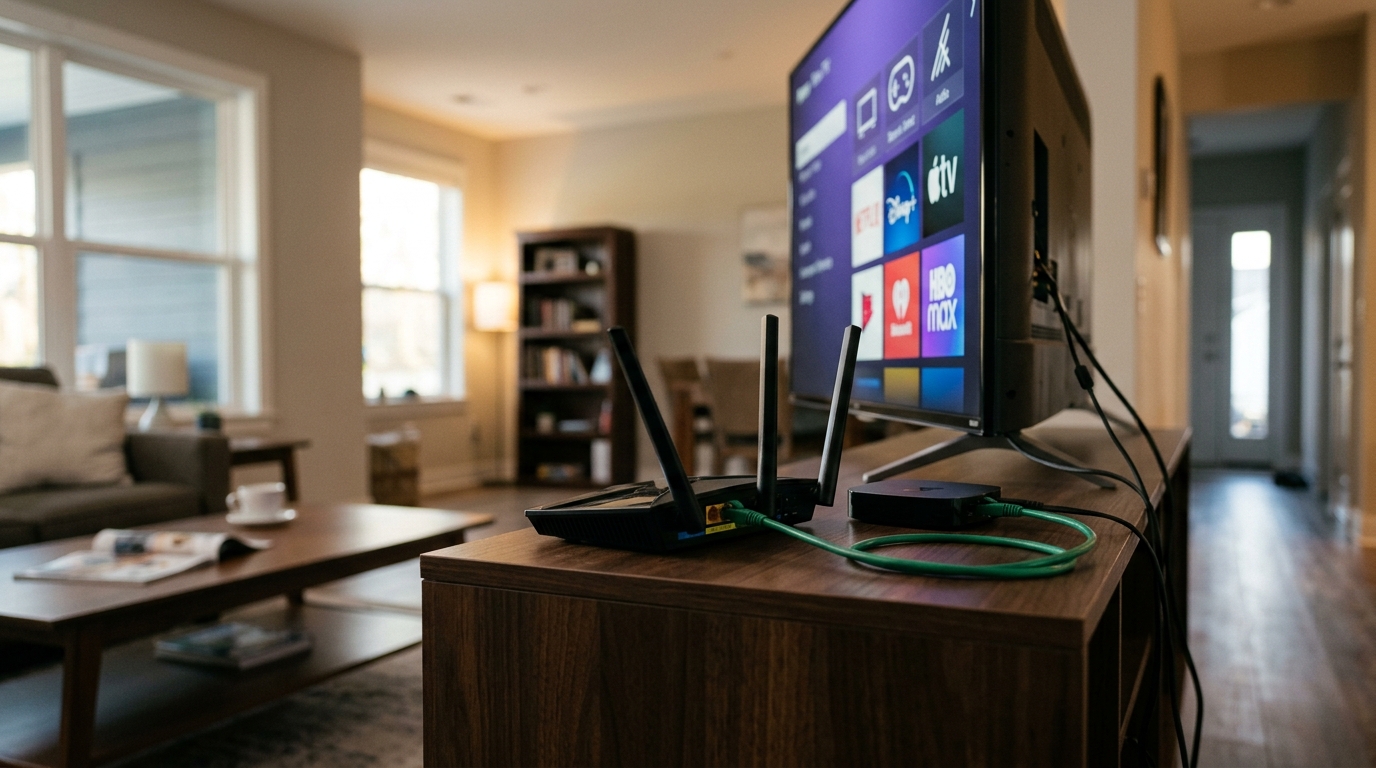
Weak Wi-Fi is one of the most common reasons for buffering. Your streaming device might be too far from the router or blocked by walls, furniture or other electronic equipment.
Try these simple fixes:
- Move your device closer to the router.
- Use the 5 GHz Wi-Fi band when the signal is strong and your device supports it.
- Disconnect devices that are using unnecessary bandwidth.
- Connect through an Ethernet cable whenever possible.
A wired connection is often more stable than Wi-Fi and can help identify whether wireless interference is causing the problem.
- Check Your Player Settings
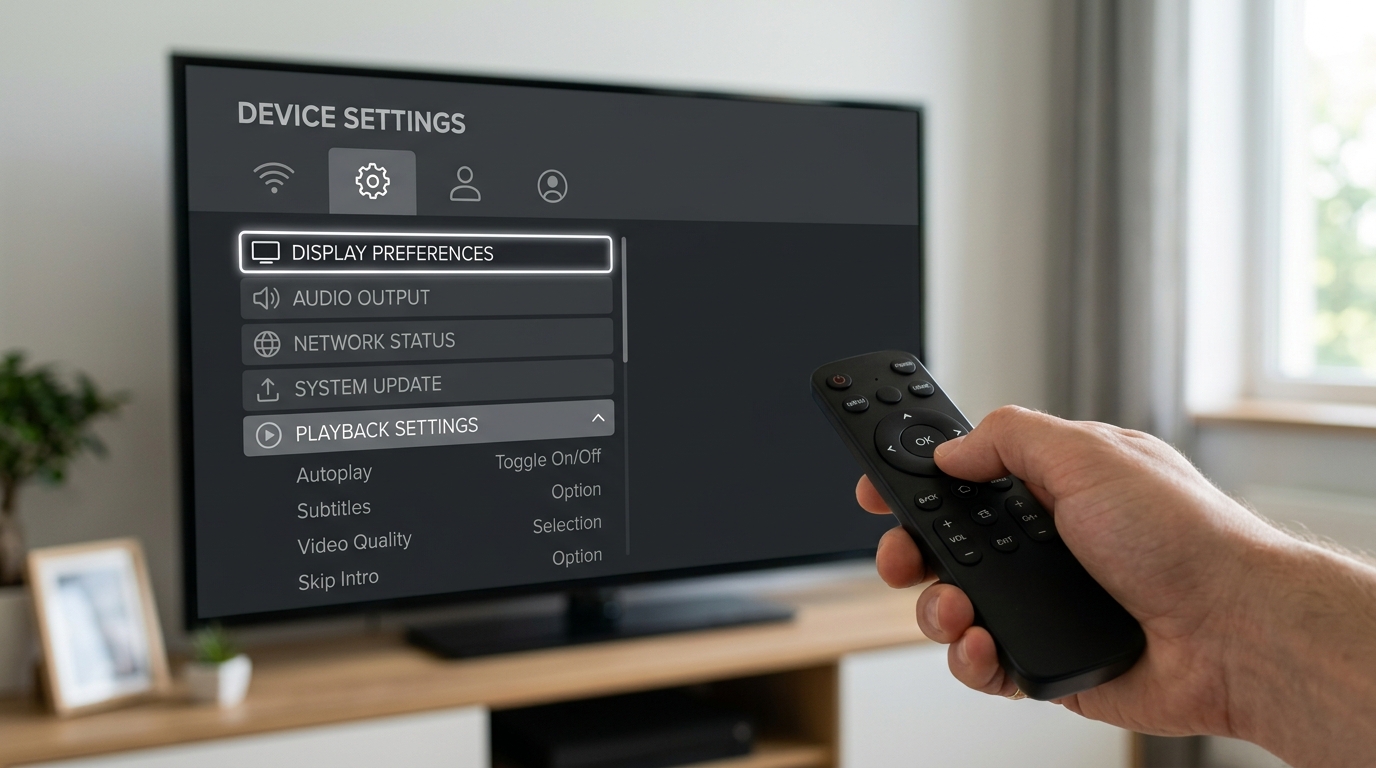
Incorrect settings can affect playback, even when your internet connection is working properly.
If your player offers buffer-size controls, try increasing the buffer slightly. This may help prevent brief network interruptions from stopping playback.
You can also try switching between hardware and software decoding if your device supports both options.
If the problem continues, test another compatible player. If playback improves, the original app's settings or compatibility may be responsible.
- Restart Your Device and Clear the Cache
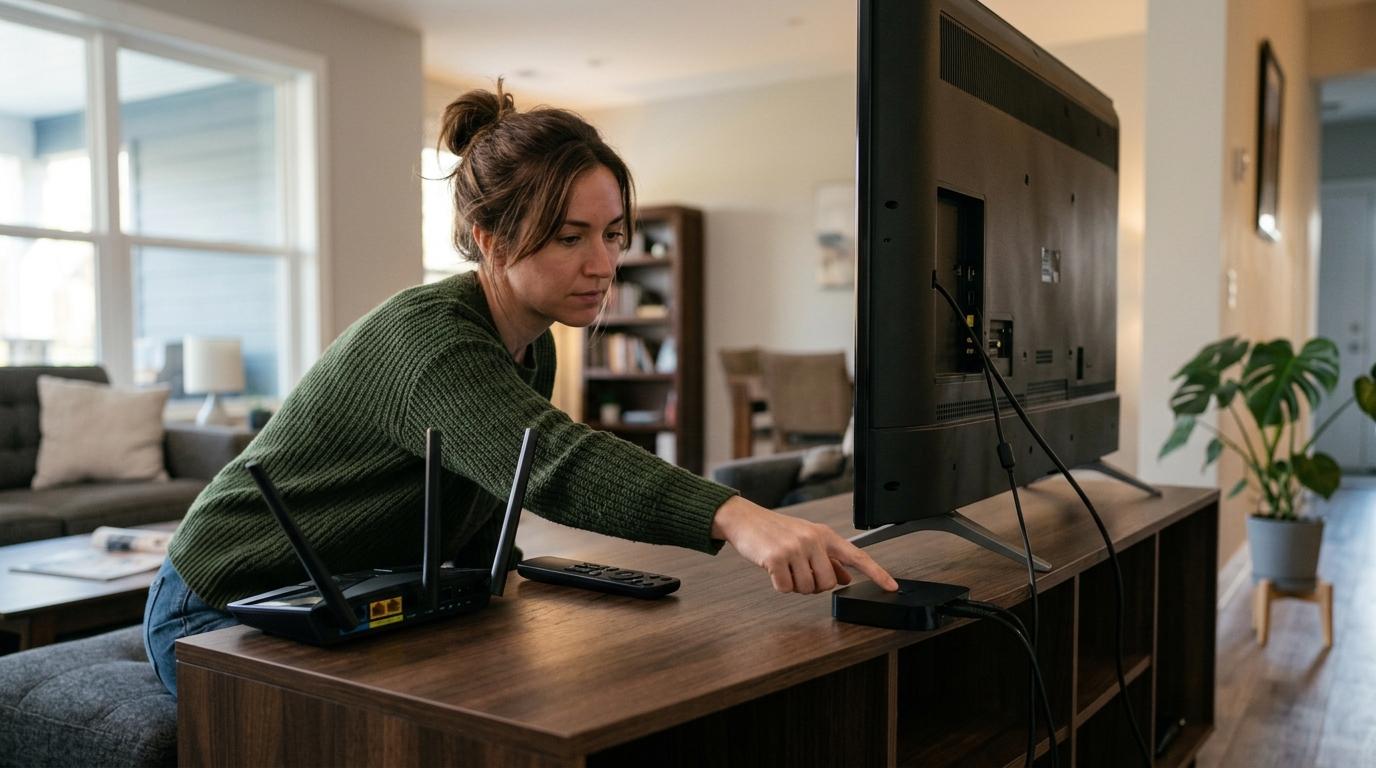
Devices that remain switched on for long periods can become sluggish. Temporary files and background processes may also affect performance.
To refresh your device:
- Close the playback app.
- Restart the device completely.
- Clear the app cache through your device settings, if available.
- Remove unused apps if storage space is running low.
- Install available system and app updates.
Restarting your device occasionally can help maintain performance and resolve temporary playback issues.
- Check for Internet Provider Restrictions
If other online activities work normally but live streams struggle during busy evening hours, network congestion or traffic management could be contributing to the problem.
Try watching at different times of the day. If playback improves late at night but becomes unreliable during peak hours, congestion may be involved.
You can also contact your internet provider to ask whether restrictions or network problems are affecting your connection. A VPN may help in some situations, but it is not a guaranteed solution and can sometimes reduce speed.
- Determine Whether the Problem Is on the Server Side
If your connection is stable, your device is working properly and other online content plays smoothly, the problem may be outside your home network.
Look for these signs:
- Playback becomes unreliable during major live events.
- Only certain channels or programmes experience interruptions.
- Buffering repeatedly occurs during busy evening hours.
- The same problem continues across different devices and compatible players.
If these issues persist after you have checked your equipment and connection, contact the relevant technical support team. They may need to investigate server capacity or the source of the stream.
A Quick Checklist for Smoother Playback
Before spending money on new equipment or changing your setup, work through this checklist:
- Test your internet speed on the viewing device.
- Improve Wi-Fi or try a wired connection.
- Adjust the player settings.
- Restart your device and clear the app cache.
- Compare playback during peak and off-peak hours.
- Seek technical support if the problem continues.
Final Tip: Change one setting at a time and test playback after each change. This makes it easier to identify the actual cause instead of making unnecessary adjustments.