Articles · REMOTE FIX
When the Remote Goes Quiet
Eight checks for a Fire TV that stopped answering
Most of the time the stick is fine. The remote has lost power, lost its pairing, or lost a clear path to the sensor.
A Fire TV that ignores the remote can make the whole evening feel stuck. The screen may be lit, or it may be black, and every button press seems to vanish.
Go through the checks in the order below. The first three fix this in most homes, and they take less time than looking for the box the stick came in.
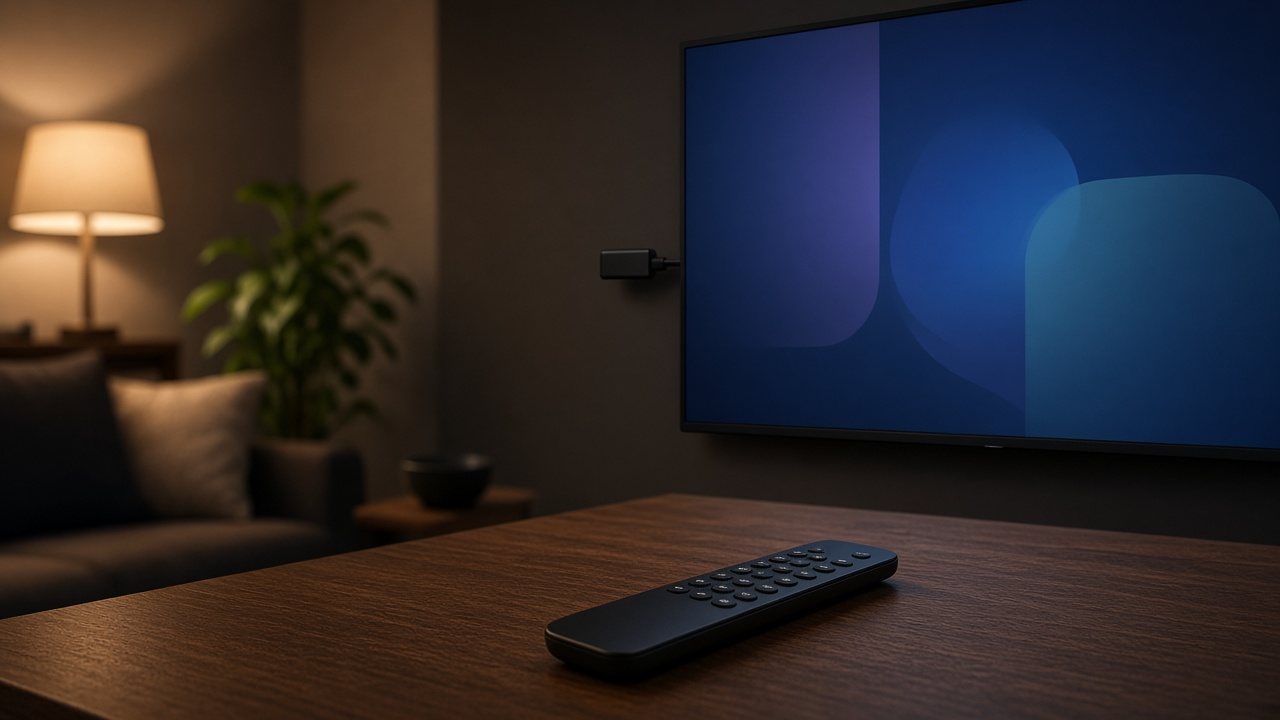
Change the batteries first
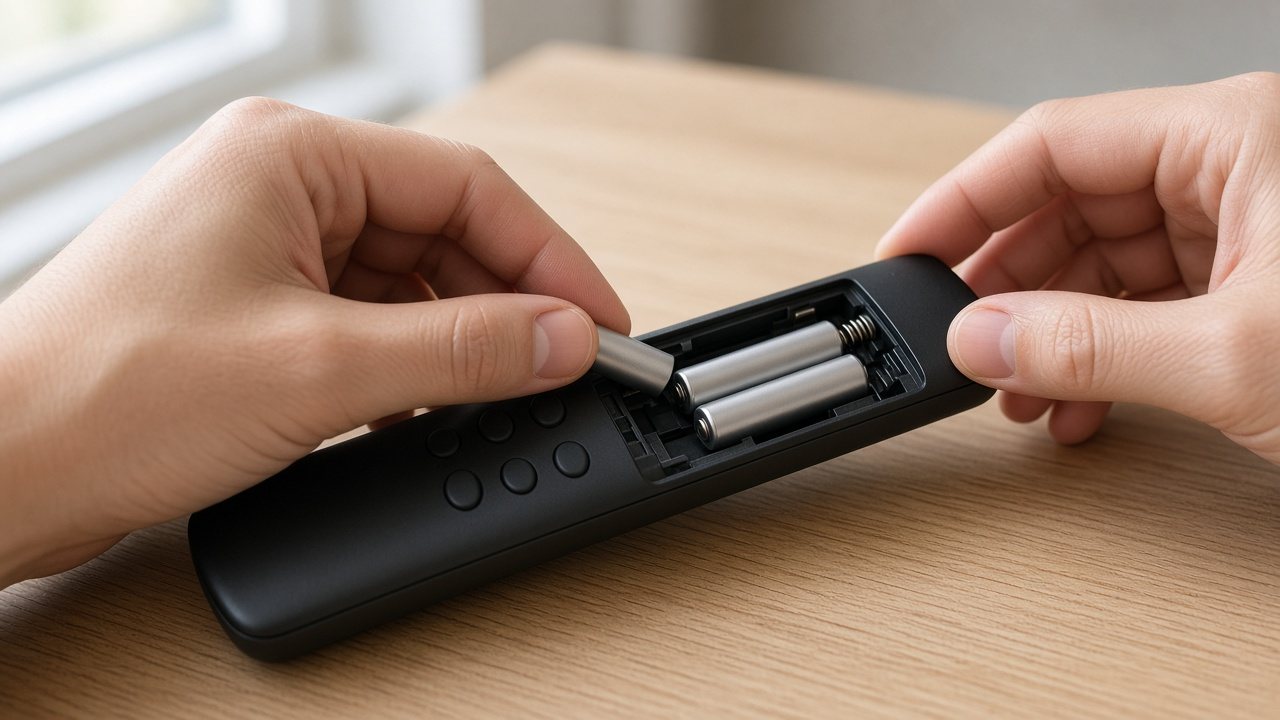
A remote can look perfectly fine and still be too weak to reach the stick. A faint light, a slow response, or a clicker that works only when you stand close usually means the batteries are tired.
- Slide the cover off and take the old batteries out.
- Wait a few seconds, then fit a fresh pair of the same size.
- Match the plus and minus marks printed in the compartment.
- Close the cover and press the home button once.
Tip. Alkaline batteries are the safer choice. Rechargeable cells often run at a lower voltage, and a streaming remote can treat that as empty.
Wake the stick before you blame it
The stick sleeps, and the television sleeps. Sometimes only one of them wakes, so the remote is speaking to a device that is not listening.
- Unplug the stick from its power source, not only from the HDMI port.
- Leave it unplugged for a full minute.
- Plug it back in and wait until a picture comes up.
- Point the remote at the stick and press the home button once.
If the television is your screen, wake it with its own remote, or with the button on the set. Then try the streaming remote again.
Pair the remote again
Pairing is a short handshake between the remote and the stick. It comes undone after a power cut, a move to a new television, or a battery change that took too long.
- Unplug the stick, then plug it back in.
- When a picture is up, hold the home button for about ten seconds.
- Watch for a small light on the remote, or a note on the screen.
- Let go once the highlight on the home screen starts to move.
If that does nothing, hold the home button and the back button together for about ten seconds, then release both. Some models pair from those two buttons instead of from home alone.
Note. Button names differ by model. If your remote has no back button, use the combination printed in the small guide from the box.
Clear the line of sight
Depending on the model, some buttons travel by a beam of infrared, and others by a short radio link. A book, a soundbar, or the glass of a cabinet door is enough to get in the way.
- Stand a little closer, and aim at the stick rather than the center of the screen.
- Move anything that sits directly in front of the stick.
- Switch off a bright lamp that shines straight at the television.
- Try again from the seat where you actually watch.
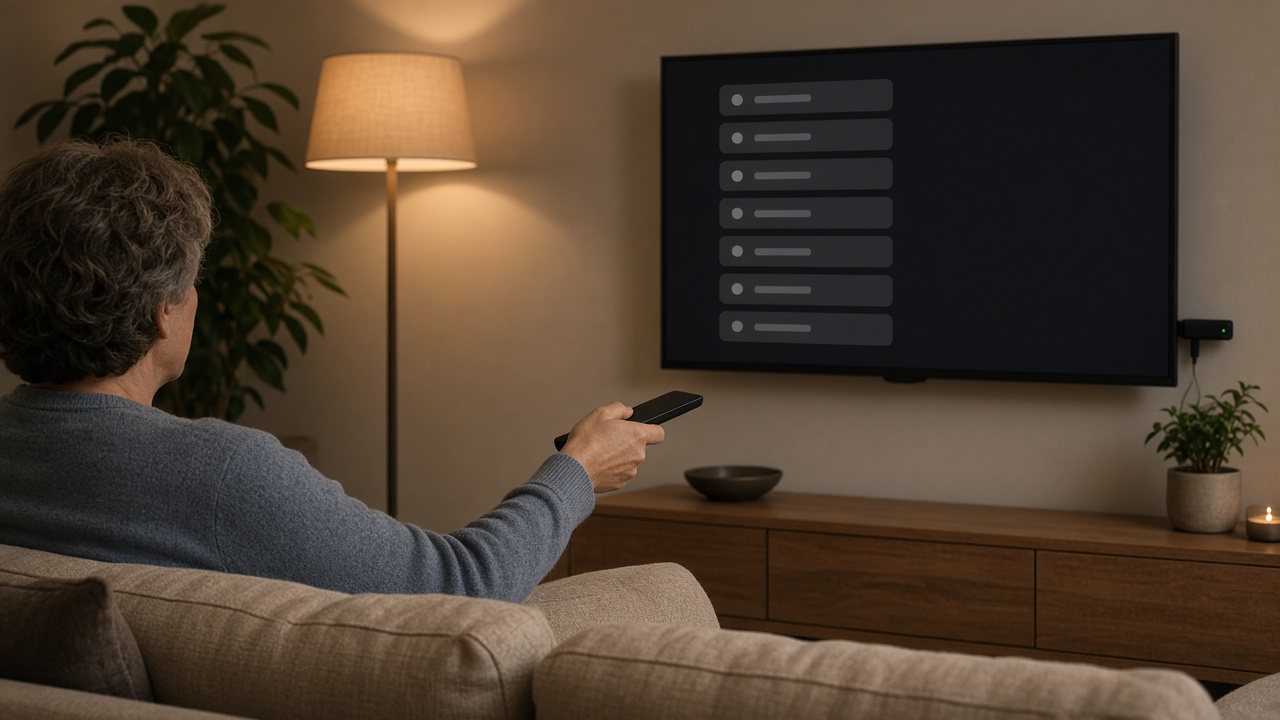
Borrow the phone for an evening
The Fire TV app on a phone can fill in for a missing remote. It is also a useful test. If the phone can walk through the home screen, the stick is fine, and the remote is the piece that failed.
- Install the official Fire TV app on a phone that uses the same Wi-Fi.
- Open the app and select your stick when it appears.
- Use the pad on the phone to open Settings.
- Start a fresh pairing from there, or simply confirm that the stick responds.
If the phone cannot see the stick
Go back to power and to the Wi-Fi before you spend money on a remote. A stick with no power, or on another network, will stay invisible to the phone too.
Look for a stuck button
A key that stays pressed will make a remote seem dead, or it will send the highlight racing across the screen on its own.
- Press every button once, including the edges of the direction ring.
- Look for a swollen battery, or for any sign of damp in the compartment.
- After a spill, take the batteries out and let the remote dry for a full day.
Caution. Do not pry the remote open past the battery cover. There is nothing inside that a home repair can safely reset.
Restart the television as well
A television that has seized the HDMI port can ignore the streaming remote until both devices start over together.
- Turn the television off with its own remote, or with the button on the set.
- Unplug the television for about thirty seconds.
- Plug the stick in first, and the television second.
- Choose the HDMI input the stick uses, then test the streaming remote.
When it is time to replace it
Replace the remote when new batteries, a fresh pairing, and the phone test all say the same thing. The stick answers another controller, and this remote answers nothing at all.
Buy the remote built for your generation of stick. A newer clicker often will not pair with an older stick, and an older clicker fails just as quietly with a new one. Keep the old remote only until the new one has moved the highlight.
The order worth keeping
If you want the short version the next time this happens, keep to this sequence and stop as soon as the highlight moves.
- Fit fresh batteries, and check the plus and minus marks.
- Unplug the stick for a minute, then wake the television.
- Pair the remote again once a picture is on the screen.
- Clear the space between you and the stick.
- Use the phone app to prove that the stick still works.
- Check for a stuck button, or for a spill.
- Restart the television, and confirm the HDMI input.
- Replace the remote only after the stick has answered something else.
A quiet remote is rarely a broken television. Begin with the batteries, and stop at the first step that brings the highlight back.