How to Fix Apps Not Working on Your Fire TV
TROUBLESHOOTING GUIDE
How to Fix Apps Not Working on Your Fire TV
A step-by-step guide for apps that will not open, keep freezing, buffer constantly, crash, or get stuck on a loading screen.
troubleshooting steps | Amazon Fire TV
| Column 1 | Column 2 |
|---|---|
| How to Fix Apps Not Working on Your Fire TV | Fire TV Troubleshooting Guide |
Introduction
If an app on your Fire TV is not opening, keeps freezing, buffers constantly, crashes, or gets stuck on a loading screen, there are several things you can try before resetting your device.
Follow these troubleshooting steps to identify the problem and get your apps working again.
What’s inside
- Check Your Internet Connection
- Restart Your Fire TV
- Force Stop the App
- Clear the App Cache
- Clear the App Data
- Check for App Updates
- Uninstall and Reinstall the App
- Update Your Fire TV Software
- Check Whether the App Service Is Down
- Test Another Streaming App
- Check Available Storage
- Reset Your Fire TV Only as a Last Resort
– Final Thoughts
Start with the simplest fixes first (steps 1 to 4) and move on to the later steps only if the problem continues.
1
| Column 1 | Column 2 |
|---|---|
| How to Fix Apps Not Working on Your Fire TV | Fire TV Troubleshooting Guide |
- Check Your Internet Connection
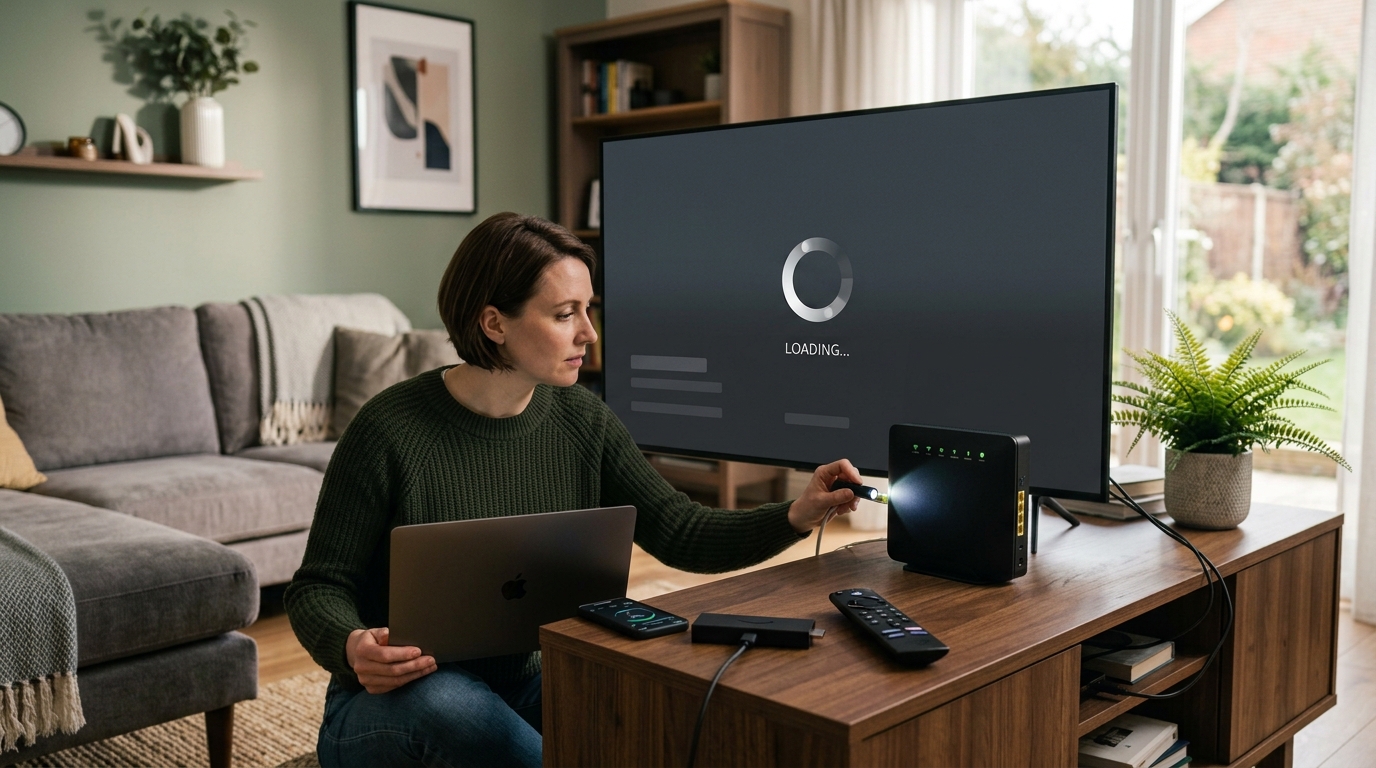
A weak or unstable internet connection can cause apps to buffer, freeze, or fail to load.
- Open Settings on your Fire TV.
- Select Network.
- Check whether your device is connected to Wi-Fi.
- Restart your router by unplugging it for around 30 seconds before reconnecting it.
- Wait for the internet connection to return, then open the app again.
If other devices in your home are also experiencing connection problems, the issue may be with your router or internet service provider.
2
| Column 1 | Column 2 |
|---|---|
| How to Fix Apps Not Working on Your Fire TV | Fire TV Troubleshooting Guide |
- Restart Your Fire TV
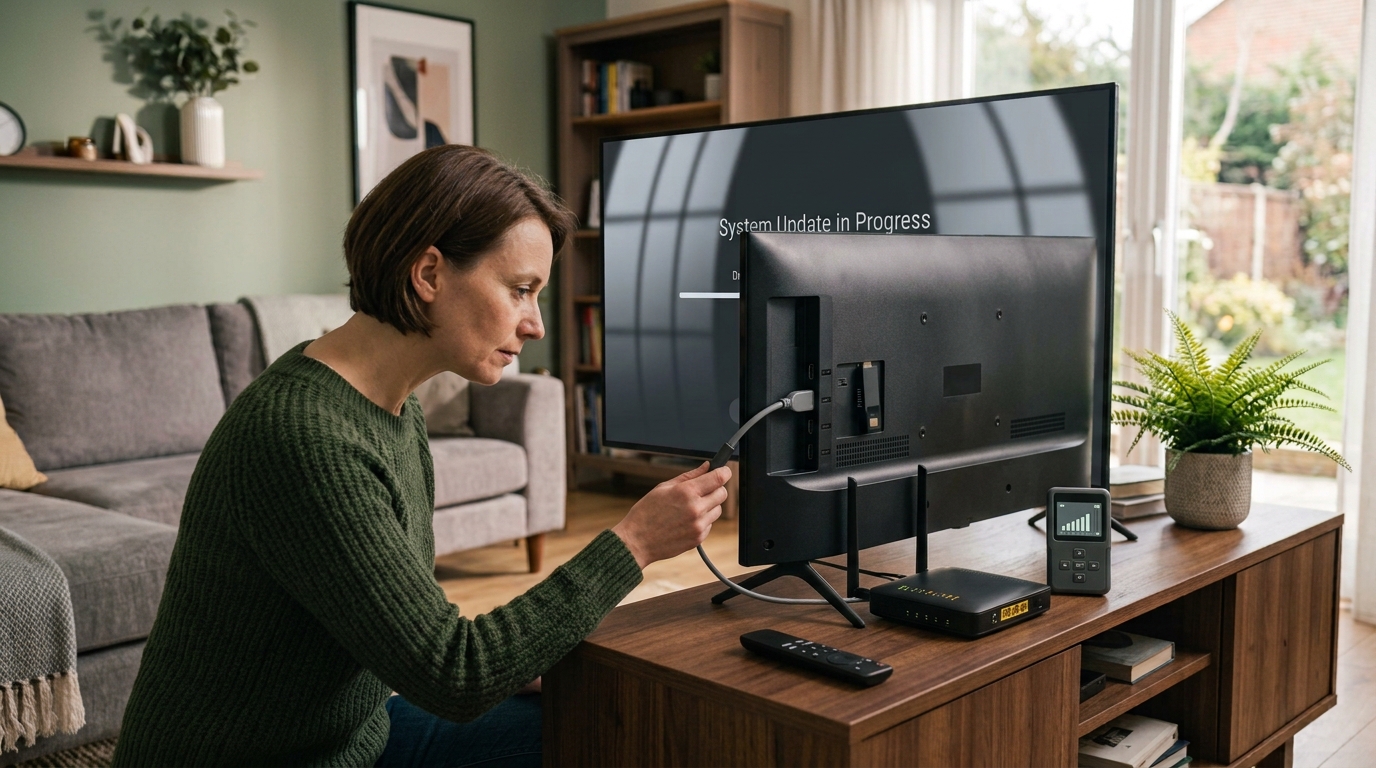
Restarting your device can clear temporary glitches and help apps run normally again.
- Open Settings.
- Select My Fire TV or Device & Software, depending on your model.
- Choose Restart, if available.
Alternatively, unplug your TV or streaming device from the power supply, wait approximately 60 seconds, and plug it back in.
Once the device has restarted, check whether the app works properly.
3
| Column 1 | Column 2 |
|---|---|
| How to Fix Apps Not Working on Your Fire TV | Fire TV Troubleshooting Guide |
- Force Stop the App
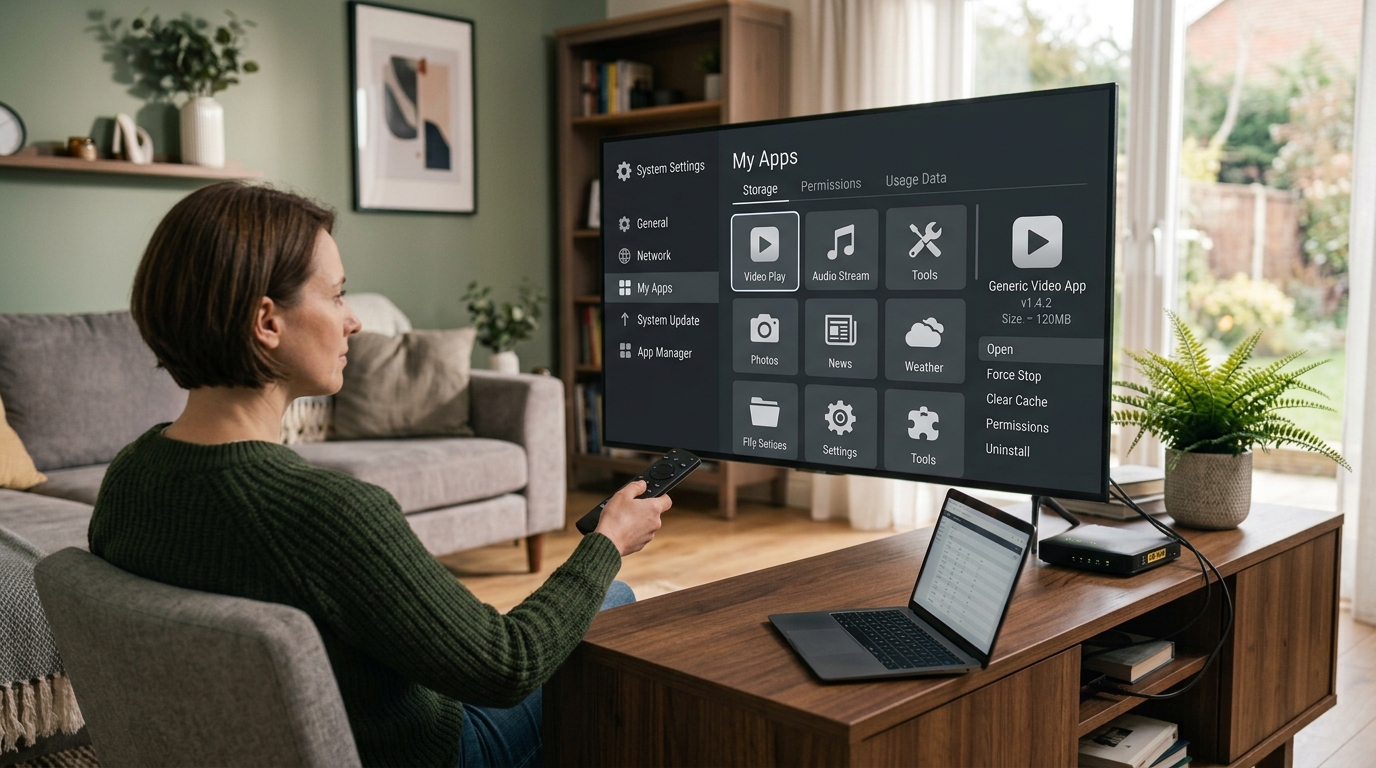
If only one app is experiencing problems, force stopping it may resolve the issue.
- Open Settings.
- Select Applications.
- Choose Manage Installed Applications.
- Select the app that is not working.
- Choose Force Stop.
- Return to the Home screen and open the app again.
This closes the app completely so you can start it again with a fresh session.
4
| Column 1 | Column 2 |
|---|---|
| How to Fix Apps Not Working on Your Fire TV | Fire TV Troubleshooting Guide |
- Clear the App Cache
Temporary files can sometimes become corrupted and cause an app to freeze, crash, or load slowly.
To clear the cache:
- Open Settings.
- Select Applications.
- Choose Manage Installed Applications.
- Select the affected app.
- Choose Clear Cache.
- Open the app again and check whether the problem has been resolved.
Clearing the cache does not normally remove your saved login details or personal settings.
- Clear the App Data
If clearing the cache does not help, clearing the app data may resolve more persistent problems.
- Open Settings.
- Select Applications.
- Choose Manage Installed Applications.
- Select the affected app.
- Choose Clear Data.
Be aware that this can remove saved settings, login details, and other information stored within the app. You may need to configure it again before using it.
Try this step only when simpler solutions have failed.
5
| Column 1 | Column 2 |
|---|---|
| How to Fix Apps Not Working on Your Fire TV | Fire TV Troubleshooting Guide |
- Check for App Updates
An outdated app may have compatibility issues or bugs that affect playback and performance.
- Open the Amazon Appstore on your device.
- Search for the affected app.
- Check whether an update is available.
- Install the update if one is offered.
- Restart the app and test it again.
If the app was installed from another source, check the developer's official instructions for updates.
- Uninstall and Reinstall the App
If the app continues to crash or refuses to open, reinstalling it may fix damaged files or installation problems.
- Open Settings.
- Select Applications.
- Choose Manage Installed Applications.
- Select the app.
- Choose Uninstall, if available.
- Reinstall the app using its official installation method.
Before uninstalling, make sure you have any login details or configuration information needed to set it up again.
Only install apps from trusted sources.
6
| Column 1 | Column 2 |
|---|---|
| How to Fix Apps Not Working on Your Fire TV | Fire TV Troubleshooting Guide |
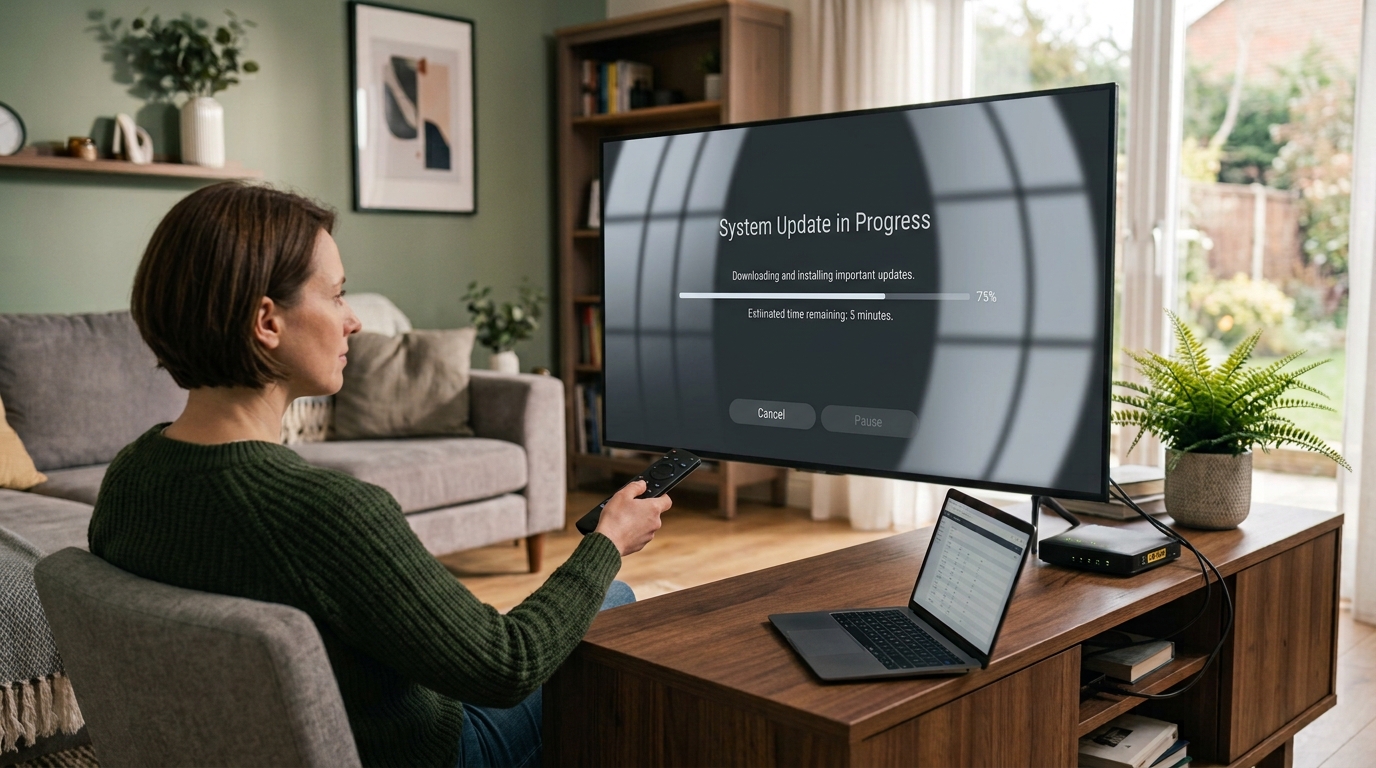
- Update Your Fire TV Software
Outdated device software can sometimes cause compatibility problems with apps.
- Open Settings.
- Select My Fire TV or Device & Software.
- Choose About.
- Select Check for Updates.
- Install any available update and restart the device if required.
Menu names can vary depending on your Fire TV model and software version.
7
| Column 1 | Column 2 |
|---|---|
| How to Fix Apps Not Working on Your Fire TV | Fire TV Troubleshooting Guide |
- Check Whether the App Service Is Down
Sometimes the problem is not your device or internet connection. The app's servers may be temporarily unavailable, or your account may have an issue.
To investigate:
- Check whether the app provider has reported a service outage.
- Confirm that your account or subscription is active, if applicable.
- Check for any account or login error messages.
- Try again later if the service appears to be experiencing an outage.
If the app works on another device but not on your Fire TV, the problem may be related to the device, its settings, or the app installation.
- Test Another Streaming App
Opening another app is a useful way to identify the source of the problem.
- If other apps work normally, the issue is more likely to involve the original app, its
configuration, your account, or its service.
- If several apps fail to load, investigate your internet connection, device software, and
available storage.
Testing another app can help you avoid changing settings unnecessarily.
8
| Column 1 | Column 2 |
|---|---|
| How to Fix Apps Not Working on Your Fire TV | Fire TV Troubleshooting Guide |
- Check Available Storage
When your device runs low on storage, apps may become slow, crash, or struggle to install updates.
To free up space:
- Open Settings.
- Select Applications.
- Choose Manage Installed Applications.
- Review the apps you no longer use.
- Uninstall unnecessary apps.
Avoid removing apps or files that you do not recognise or need for your device to operate correctly.
After freeing up storage, restart your Fire TV and test the affected app again.
9
| Column 1 | Column 2 |
|---|---|
| How to Fix Apps Not Working on Your Fire TV | Fire TV Troubleshooting Guide |
- Reset Your Fire TV Only as a Last Resort
If multiple apps continue to fail after trying the steps above, a factory reset may help resolve a persistent software problem.
Before proceeding, remember that a factory reset removes installed apps, saved settings, and account information from the device.
If you decide to continue:
- Open Settings.
- Select My Fire TV or Device & Software.
- Look for Reset to Factory Defaults.
- Follow the on-screen instructions.
The exact menu location may differ by model.
Once the reset is complete, set up your device again and reinstall the apps you need.
Do not perform a factory reset for a problem affecting only one app until you have tried the simpler troubleshooting steps.
Final Thoughts
When an app stops working on your Fire TV, start with the simplest solutions: check your internet connection, restart the device, force stop the app, and clear its cache.
If the problem continues, check for updates, review available storage, and test another app to determine whether the issue affects one application or the entire device.
If only one app remains affected after these checks, contact its developer or service provider for further assistance. If several apps fail at the same time, focus on your internet connection and device software before making major changes.
10