Articles · TROUBLESHOOTING GUIDE
Fire TV Won’t Connect to Wi-Fi?
8 Ways to Fix the Problem
Fire TV • Wi-Fi & Networking • Step-by-step fixes, from simple checks to advanced options
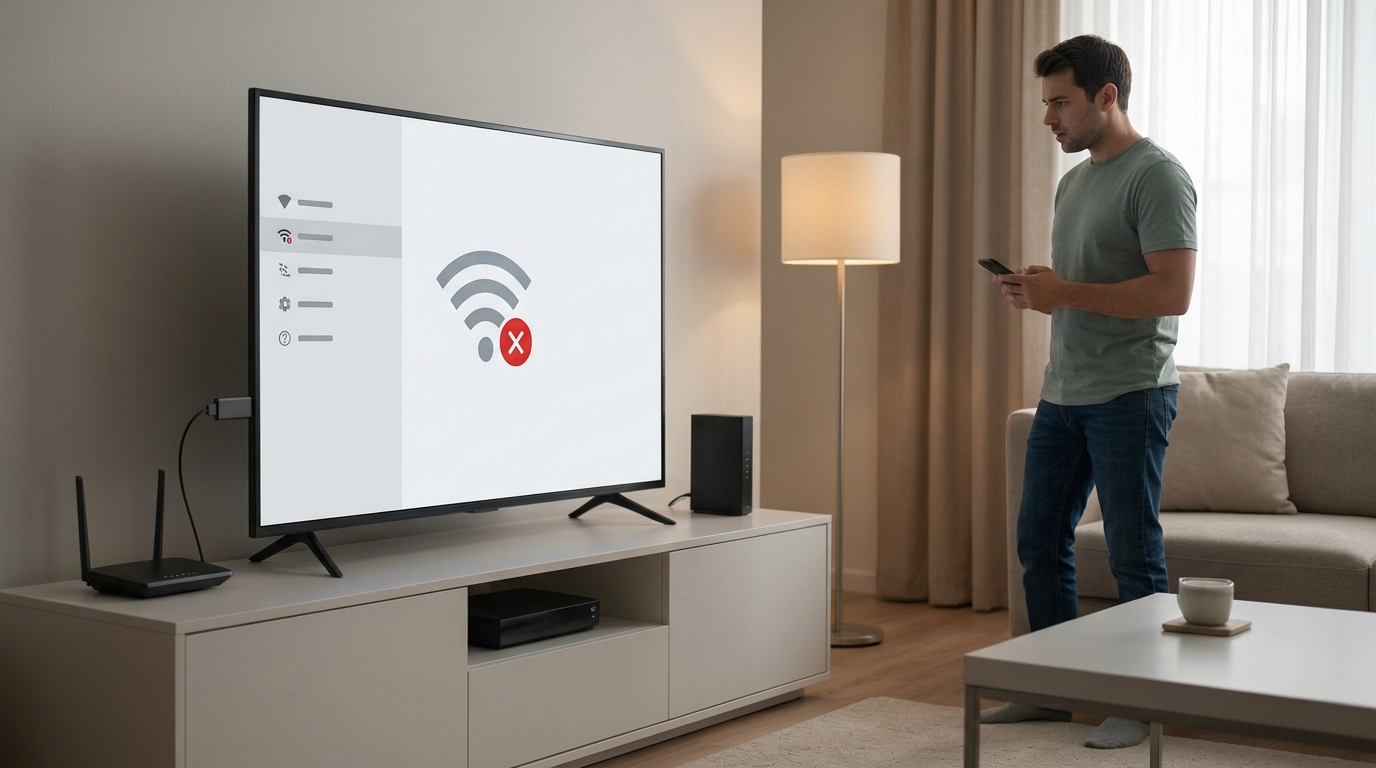
Is your Fire TV refusing to connect to Wi-Fi just when you want to watch your favourite show? Perhaps your screen says “Unable to Connect,” your Wi-Fi network has disappeared, or videos keep buffering even though your internet seems fine.
These problems can be frustrating, especially when everything was working normally a few hours ago. The good news is that you can often fix them yourself without buying a new device or resetting everything.
In this guide, you’ll learn how to troubleshoot Fire TV Wi-Fi problems step by step, from simple connection checks to more advanced fixes.
IN THIS GUIDE
- Check whether your internet connection is working
- Restart your Fire TV properly
- Turn Wi-Fi off and on again
- Forget the Wi-Fi network and connect again
- Restart your router and modem
- Check your router’s frequency band and settings
- Check for internet outages and connection problems
- Consider a factory reset only as a last resort
1 Check Whether Your Internet Connection Is Working
Before changing your Fire TV settings, check whether the problem comes from your internet connection or the streaming device itself.
- Take your phone, tablet or laptop and connect it to the same Wi-Fi network.
- Open a website or play a video.
- Check whether pages load normally.
- Notice whether the connection keeps dropping.
- If possible, test another device connected to the same router.
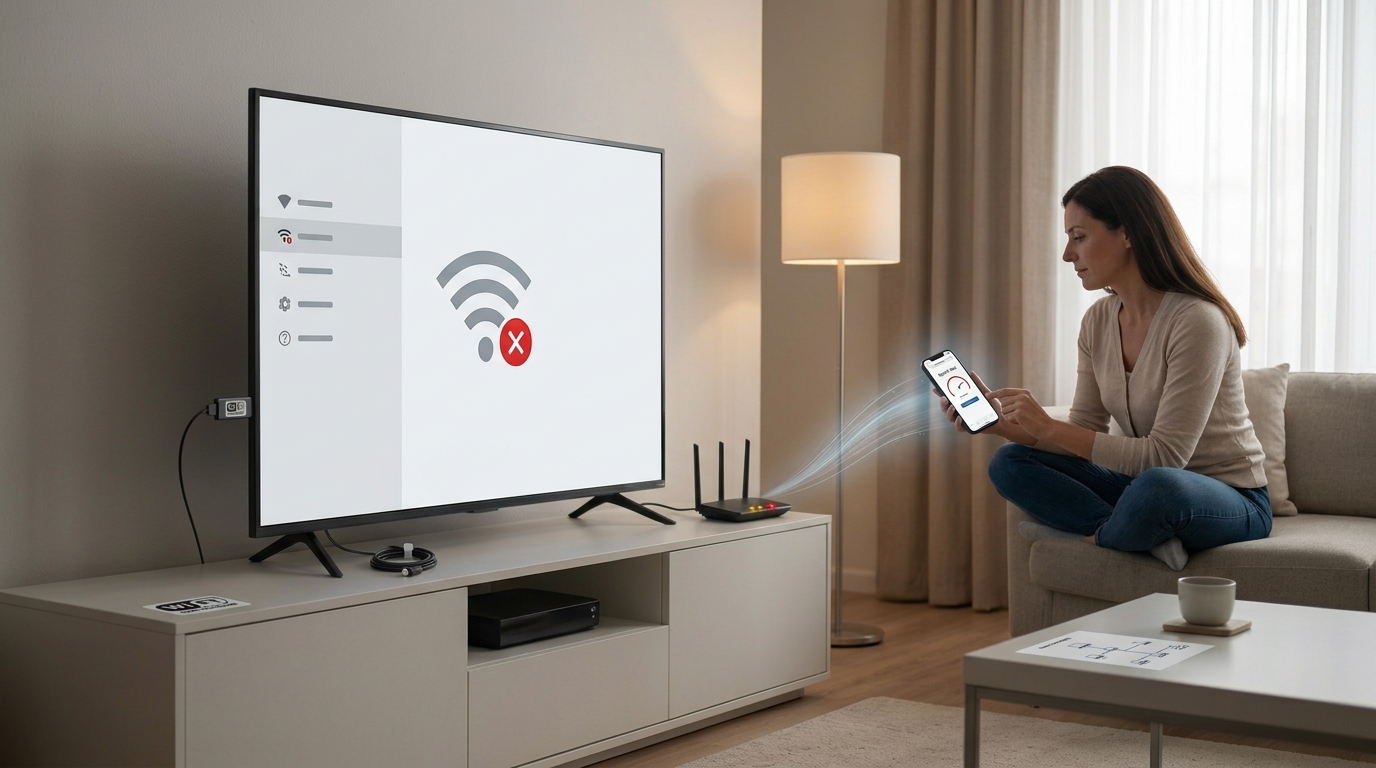
If other devices cannot access the internet either, your router or internet service may be responsible. There’s little point changing your Fire TV settings until you’ve checked the network.
If other devices work perfectly, continue with the steps below.
2 Restart Your Fire TV Properly
A Fire TV device can occasionally experience temporary software or network glitches. Restarting it gives the system a fresh start and may restore the connection.
Here’s what to do:
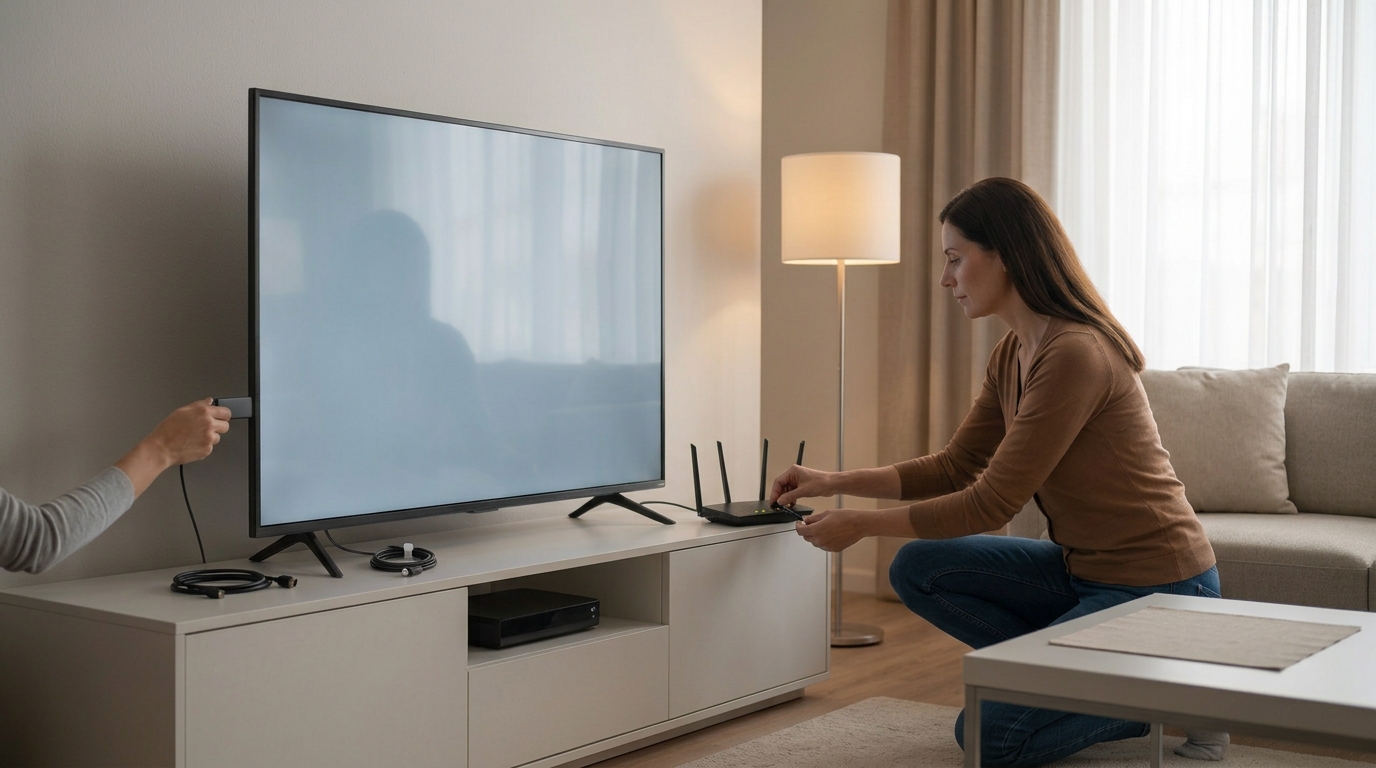
- Unplug your Fire TV device from its power source.
- Leave it disconnected for at least 10 seconds.
- Plug it back in.
- Wait for the home screen to load completely.
- Try connecting to Wi-Fi again.
If your device responds to the remote, you may also find a restart option under Settings, depending on your model and software version.
Caution. Avoid repeatedly unplugging the device while it is installing an update. Let any update finish before restarting it.
If the Wi-Fi problem remains, move on to the next step.
3 Turn Wi-Fi Off and On Again
Sometimes, Fire TV can struggle to reconnect to a previously saved wireless network. Refreshing the connection is a simple way to resolve this.
Follow these steps:
- Open Settings on your Fire TV.
- Select Network.
- Choose your Wi-Fi network if it appears.
- If your device offers a way to disconnect or refresh the connection, use it and reconnect.
Note. Menu options can vary between Fire TV models, so you may not see a separate Wi-Fi switch.
What if your Wi-Fi network has disappeared?
Check whether your phone can still see the network name from the same location. If it cannot, the issue may be related to your router, wireless signal or network settings rather than the Fire TV itself.
You should also check that your router is broadcasting the correct network name and that you haven’t accidentally disabled its wireless function.
4 Forget the Wi-Fi Network and Connect Again
If your Fire TV detects your network but refuses to connect, the saved connection details may be causing trouble. Removing the saved network and reconnecting can help.
- Open Settings and select Network.
- Highlight your Wi-Fi network.
- Press the Menu button on your remote, if the option is available.
- Choose the option to forget or remove the network.
- Select your Wi-Fi network again.
- Enter the correct password and reconnect.
Tip. Be careful when entering your password. Uppercase letters, lowercase letters and special characters must match exactly.
If you’ve forgotten the password, check your router label or the settings of a device that has access to your network. You can also contact your internet provider for assistance.
If the connection still fails, continue troubleshooting.
5 Restart Your Router and Modem
Your router may appear to be working while struggling to maintain a stable connection. A proper restart can clear temporary network problems.
Try the following procedure:
- Unplug your router and modem from their power sources.
- Wait approximately 60 seconds.
- If you have a separate modem, reconnect it first.
- Allow the modem to reconnect to your internet service. This may take a few minutes.
- Reconnect your router.
- Wait until its connection lights indicate that it is ready.
- Try connecting your Fire TV again.
If your modem and router are combined into one unit, simply restart that device and wait for the connection to return.
Important. Restarting a router is different from resetting it. Do not press and hold the factory reset button unless you intend to restore its original settings.
Check the Wi-Fi signal
The distance between your Fire TV and router can make a noticeable difference.
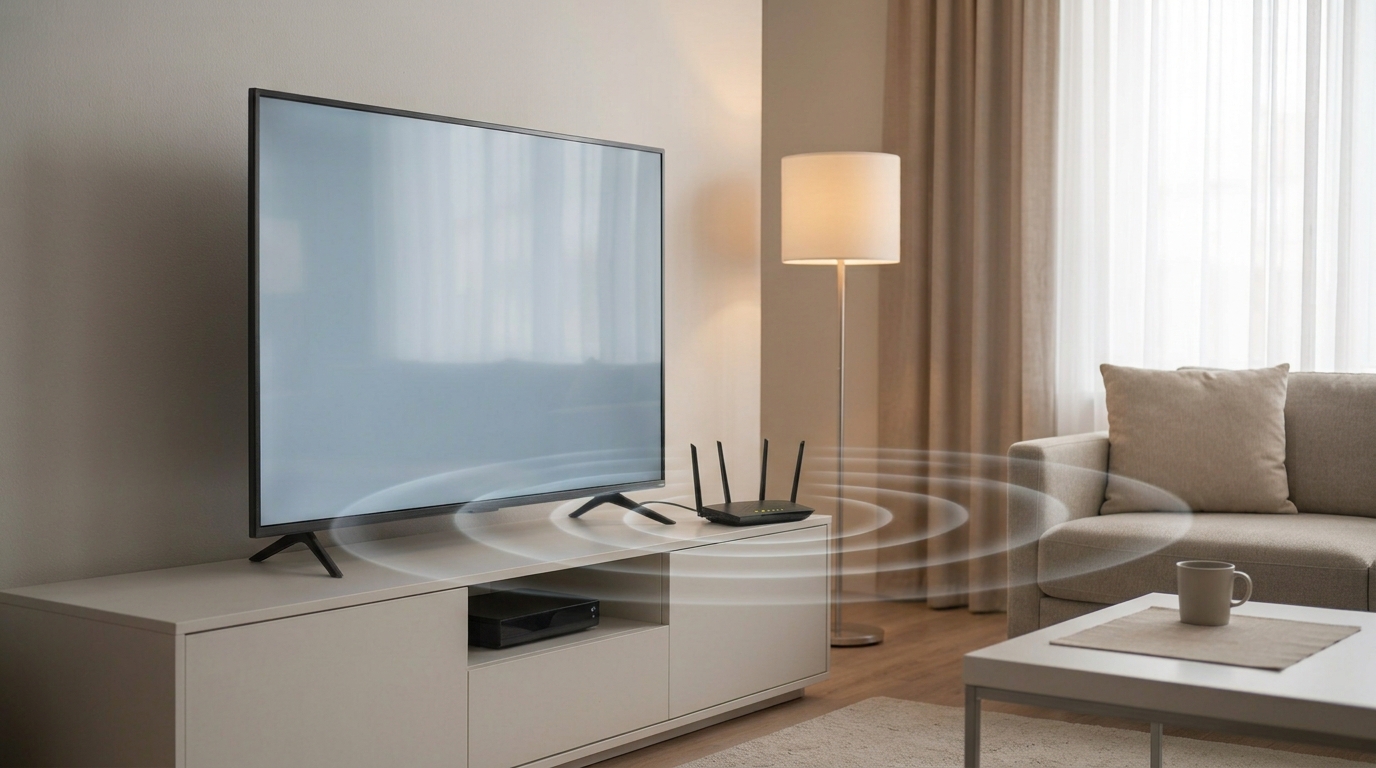
Walls, floors, large furniture and interference from nearby wireless networks can weaken the signal. If possible, temporarily move your router closer to the television or test the Fire TV in a location with a stronger connection.
If the connection improves when the devices are closer together, poor signal strength may be part of the problem.
6 Check Your Router’s Frequency Band and Settings
Some Wi-Fi problems are caused by the router’s wireless settings rather than a fault with the Fire TV.
Modern routers may offer 2.4 GHz, 5 GHz or 6 GHz Wi-Fi bands. Not every Fire TV model supports every band, so check your device’s specifications before changing anything.
Here are a few things worth checking:
- Compatible Wi-Fi band: Make sure your Fire TV is connecting to a band it supports.
- Network name: Confirm that you are selecting the correct Wi-Fi network.
- Password: Verify that the password has not changed.
- Router settings: Check whether any access restrictions or device limits are preventing the Fire TV from connecting.
- Wireless coverage: Consider a mesh Wi-Fi system or an additional access point if your home has persistent dead zones.
Some routers combine several frequency bands under one network name. This can work well, but certain devices may connect more reliably after a router setting is adjusted. If you are unsure, contact your internet provider or router manufacturer before making advanced changes.
Tip. Do not assume you need to purchase a new router immediately. First establish whether your current equipment is compatible and working correctly.
7 Check for Internet Outages and Connection Problems
Your Fire TV may be functioning normally while your internet provider is experiencing a temporary outage.
If several devices suddenly lose their connection, check your provider’s service-status page or contact its support team.
You can also try connecting your Fire TV to a different trusted Wi-Fi network, such as a mobile hotspot, if your data plan allows it.
This is a useful diagnostic test:
- If Fire TV connects to the alternative network, your original router or internet connection may be responsible.
- If Fire TV cannot connect to any available network, the issue may involve the device’s settings, software or hardware.
Note. A mobile hotspot uses your mobile data allowance. Avoid lengthy video tests if your plan has a limited data allowance.
8 Consider a Factory Reset Only as a Last Resort
If none of the previous methods works, a factory reset may help resolve a persistent software or configuration problem.
However, this should be your last option because it removes your personal settings and may require you to set up the device again.
Before proceeding:
- Make sure you know your Amazon account details.
- Check that you can reconnect to your Wi-Fi network.
- Understand that you may need to reinstall apps and sign in again.
- Consult the reset instructions for your particular Fire TV model.
Use the reset option available in your device’s settings, following the on-screen instructions. Do not interrupt the process once it begins.
Important. A factory reset is not guaranteed to fix every connection problem. If your device still cannot connect after resetting, contact the device manufacturer’s support team to investigate a possible hardware fault.
How to Prevent Fire TV Wi-Fi Problems in the Future
Once your connection is working again, a few simple habits can help reduce the chance of similar problems.
- Keep your device software updated. Updates can include improvements and fixes for known issues. Install them when available, using a reliable internet connection.
- Give your router enough space. Avoid placing it behind large objects, inside closed cabinets or next to equipment that may cause wireless interference.
- Keep your connection stable. If several people are downloading large files or streaming simultaneously, your available bandwidth may become limited.
- Check your router occasionally. If the internet repeatedly disconnects across multiple devices, investigate the router or contact your provider instead of repeatedly changing Fire TV settings.
- Avoid unnecessary factory resets. Simple connection checks and restarts should come first.
Final Thoughts
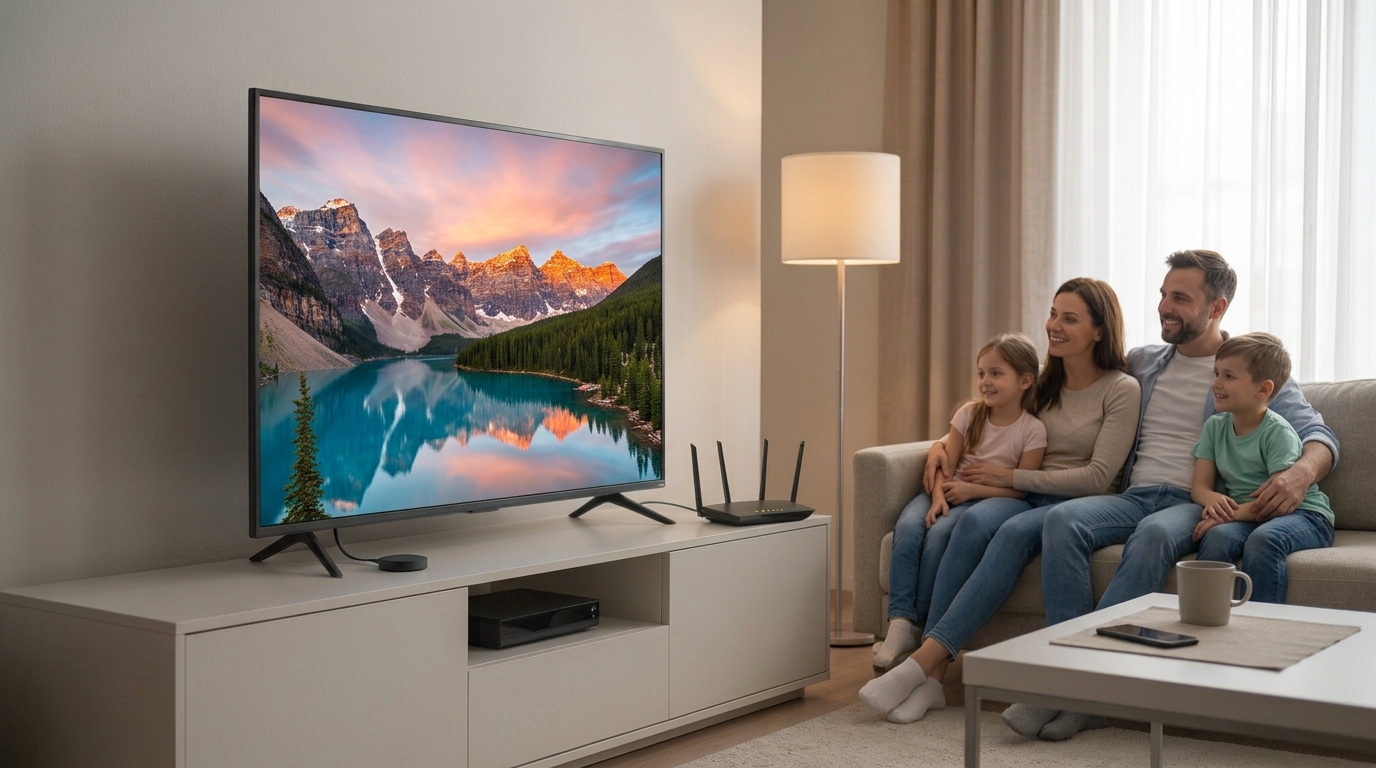
When your Fire TV won’t connect to Wi-Fi, the problem doesn’t automatically mean your device is broken. A temporary network glitch, incorrect password, weak wireless signal or router issue can all prevent a successful connection.
Start by checking your internet on another device, restarting Fire TV and refreshing the saved Wi-Fi connection. If that doesn’t work, restart your router, investigate wireless settings and check for a service outage.
Save a factory reset for situations where other troubleshooting methods have failed.
Working through these checks in order can help you identify the cause of the problem and get back to watching your favourite content without unnecessary expense or frustration.